


Sound in screenshare
Updated May 8, 2026
In order to display a PowerPoint slide in presenter-view in screen-share, you have to enable a specific setting in the PowerPoint program before starting the screen-share function. Please note the Microsoft help site for the respective option.
https://support.microsoft.com/de-de/office/verwenden-der-presenteransicht-in-powerpoint-fe7638e4-76fb-4349-8d81-5eb6679f49d7
support.microsoft.com
Verwenden der Referentenansicht in PowerPoint - Microsoft-Support
Training:
PowerPoint Presenter View shows you the current slide, the next slide, and your speaker notes, to help you focus while presenting and connect with your audience. Watch this video to see how.
Activating Microsoft PowerPoint presentation-view for screensharing
In order to display a PowerPoint slide in presenter-view in screen-share, you have to enable a specific setting in the PowerPoint program before starting the screen-share function. Please note the Microsoft help site for the respective option.
https://support.microsoft.com/en-gb/office/use-presenter-view-in-powerpoint-fe7638e4-76fb-4349-8d81-5eb6679f49d7
support.microsoft.com
Use Presenter View in PowerPoint - Microsoft Support
Training:
PowerPoint Presenter View shows you the current slide, the next slide, and your speaker notes, to help you focus while presenting and connect with your audience. Watch this video to see how.
Sound in Screen Sharing
Our "Allow audio in screen sharing" feature enables you to share your system sound with your participants via the screen sharing function.
To transmit audio during screen sharing, follow these steps:
Accessing Room Settings:
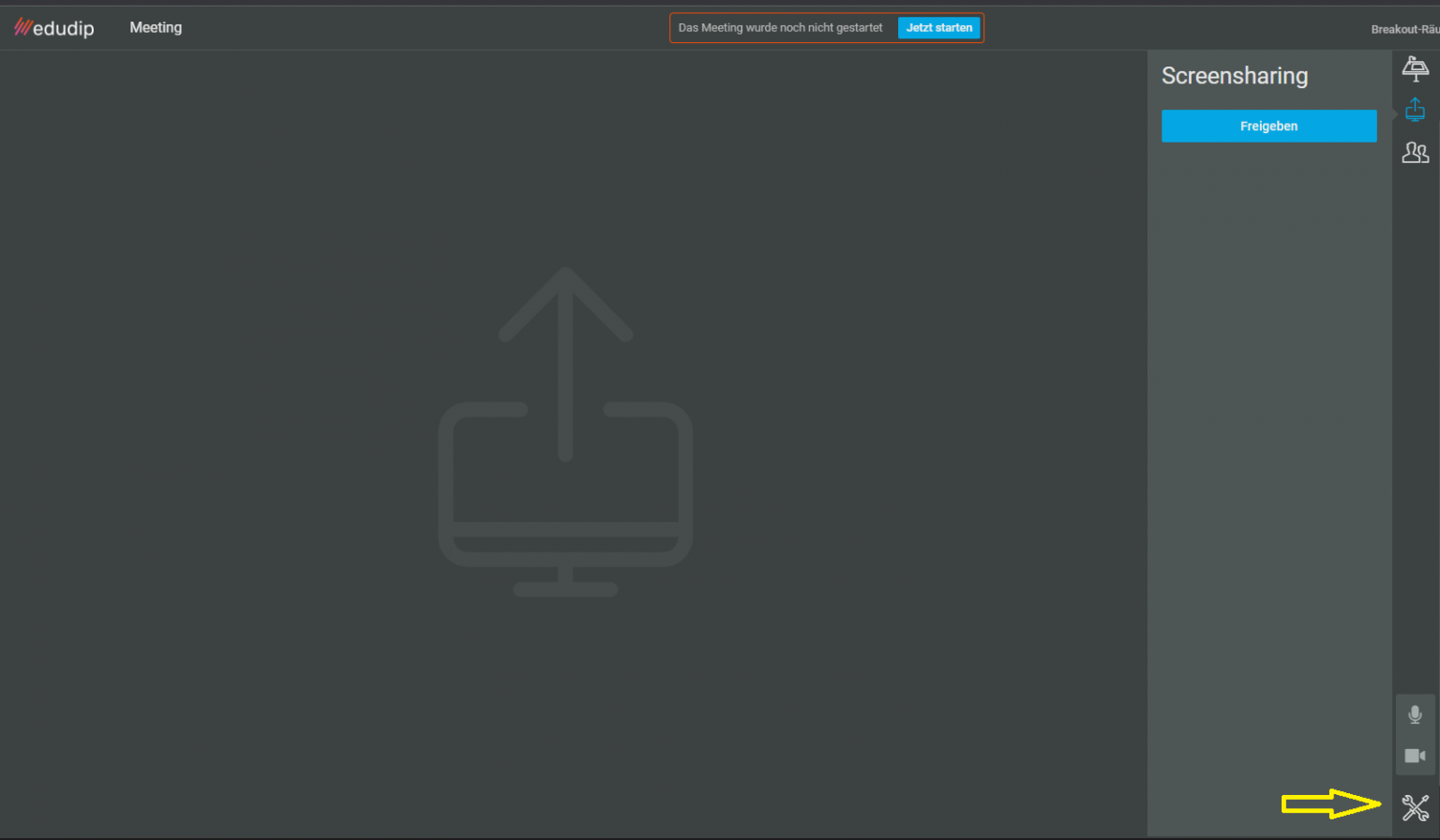
Go to the room settings in the bottom right.
2. Enable the audio option:
Check the checkbox next to the option "Allow audio in screen sharing". This allows you to share the audio during screen sharing.
3. Prepare screen sharing:
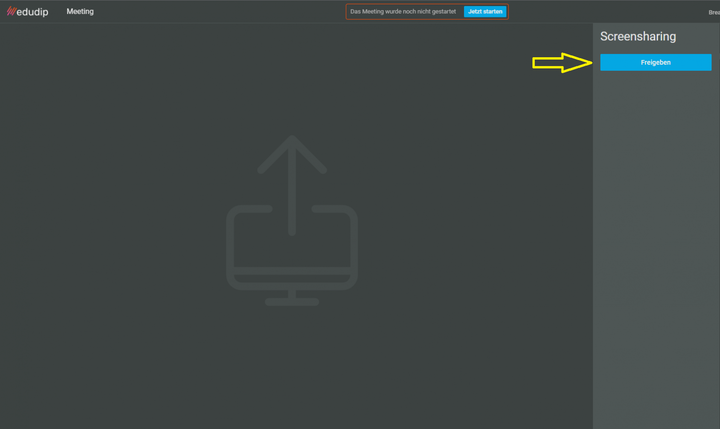
Go to the screen sharing icon and click the 'Share' button.
4. Select what you want to share:
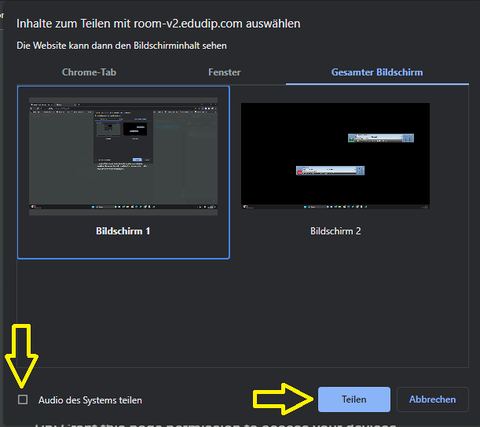
A window will appear where you can select either a specific browser tab or a window that you want to share.
5. Enable audio transmission:
Below the window where you make your selection, you will find a checkbox. Here, select either "Share system audio" or "Share tab audio," depending on which audio source you wish to transmit.
6. Start screen sharing:
Click the "Share" button to start screen sharing with audio.
Note: Currently, only recent versions of Google Chrome support this feature. Furthermore, because system audio is being transmitted, feedback effects may occur if your microphone is active. Therefore, please deactivate your microphone when using this feature.